Using the tool, step by step

Every screenshot below was taken by a test that was, at that moment, proving the product works. When the app changes, the picture changes with it on the next build — this guide cannot quietly go out of date.

These images come from the QA-to-docs journeys (tests/qa-to-docs/), captured on CI against a scripted model so that every run produces the same pictures. No real voice note and no real API key is involved in making them — see the testing page for how the journeys work. When a picture moves, the change is recorded in the baseline change log against the commit that caused it.

Getting started

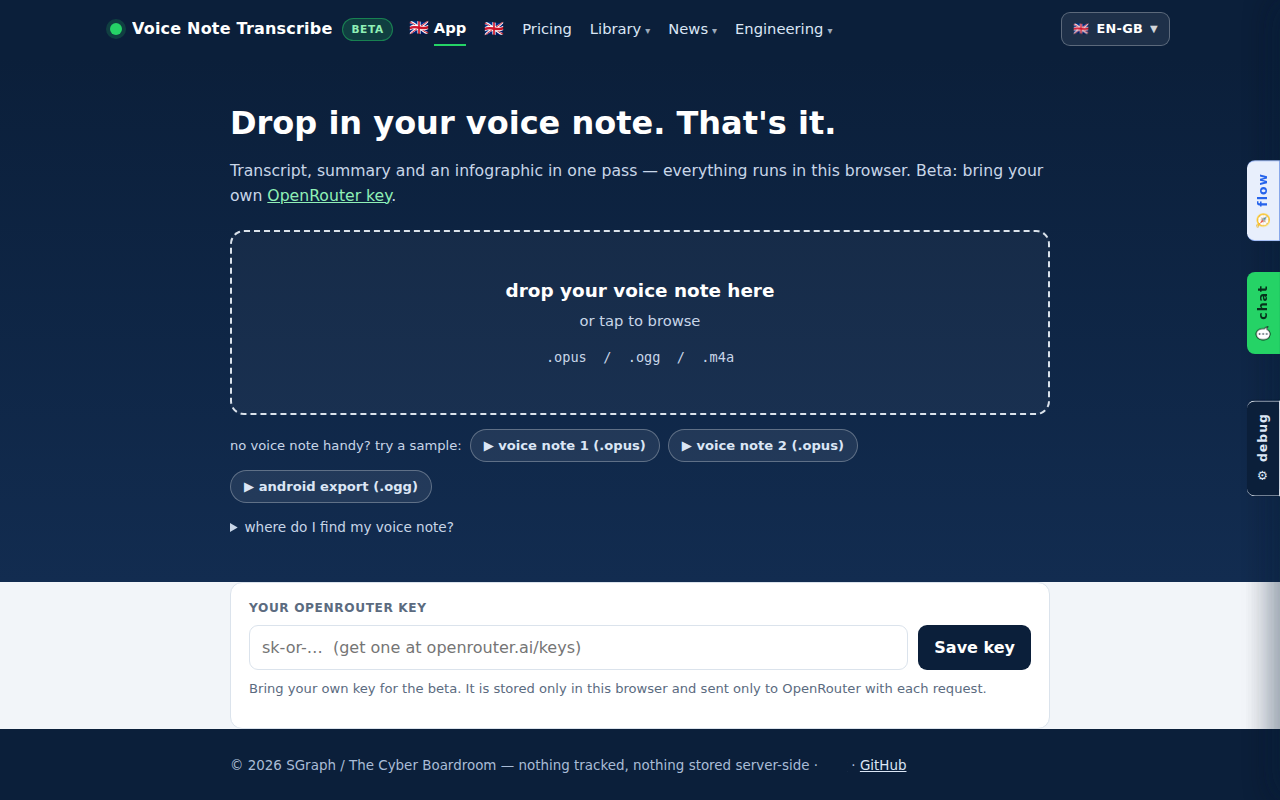
What you need before the first voice note: the page itself, and your own OpenRouter key. There is no account and nothing to install.

The app as you arrive: drop zone, sample notes, and the key panel.
Paste your OpenRouter key once — it stays in your browser.

The one pass

Drop the voice note in and everything happens in a single pass — transcript, summary, and an infographic if you asked for one.

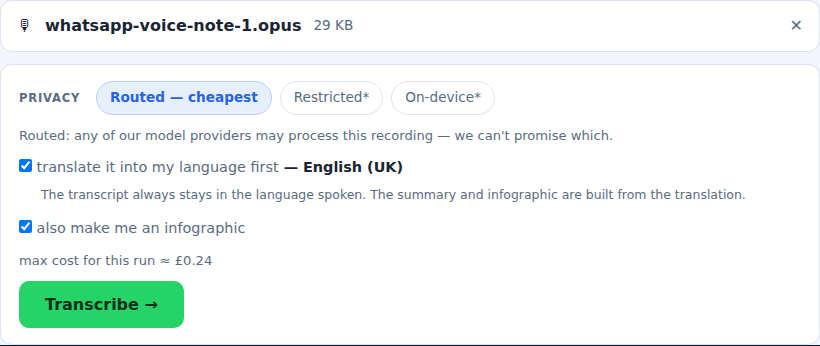
A loaded voice note: choose whether you want an infographic, then transcribe.
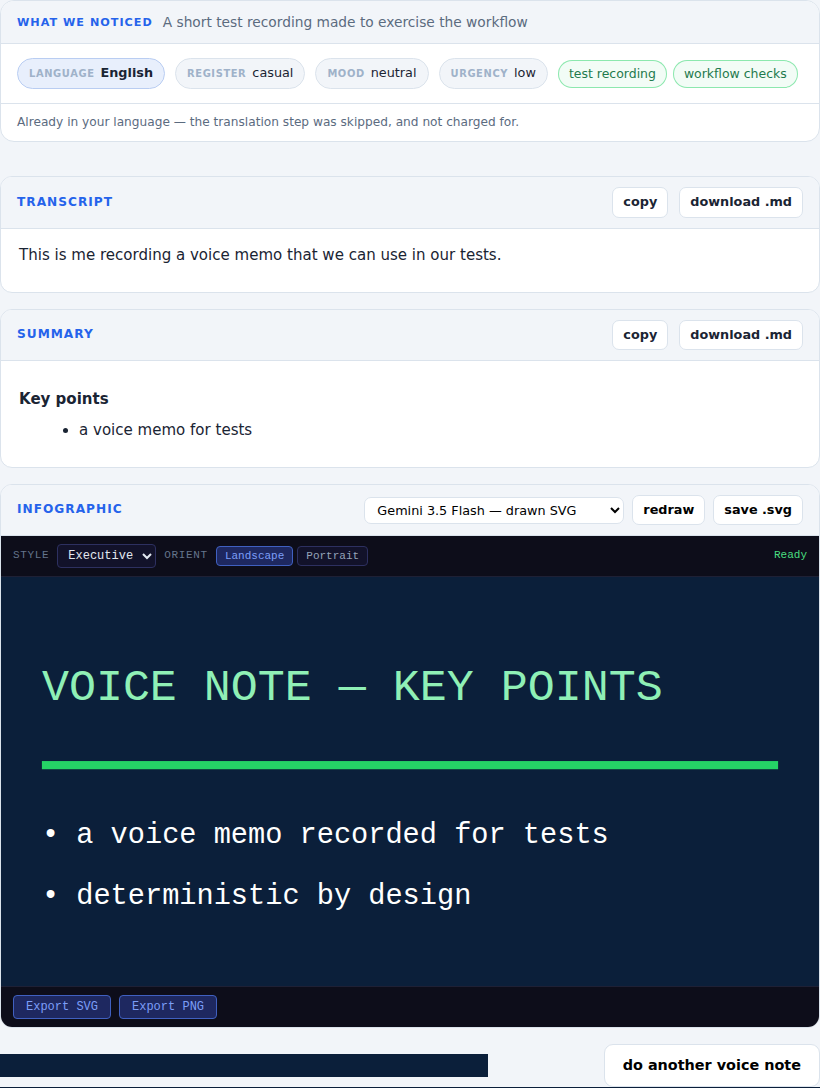
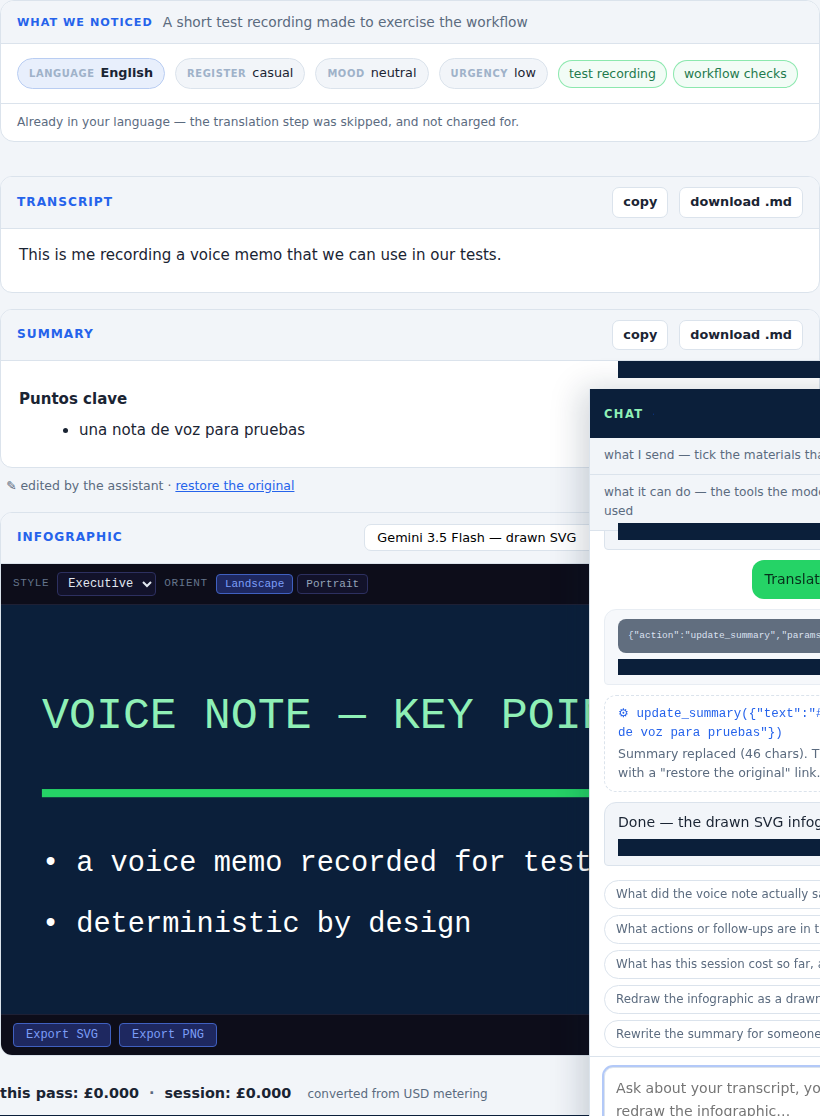
The one pass, done: transcript, summary and the infographic together.
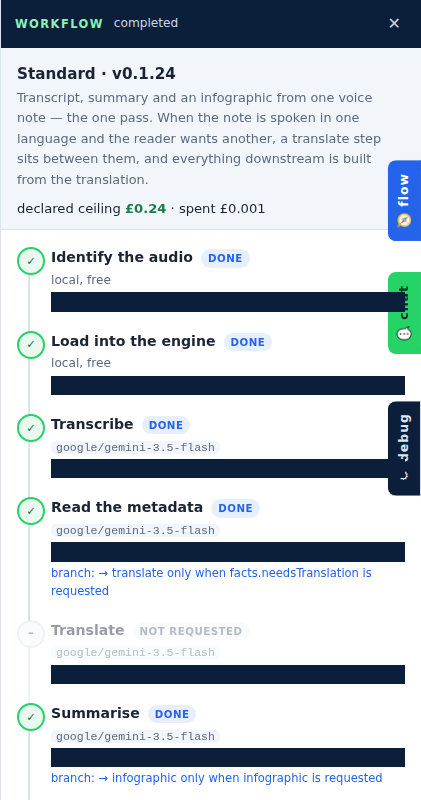
The 🧭 flow tab: the declared workflow — every step's model and spending ceiling, and what this run actually did and cost.

Chatting with your materials

Once the pass is done you can talk to what it produced — and ask the assistant to do the work, not just describe it.
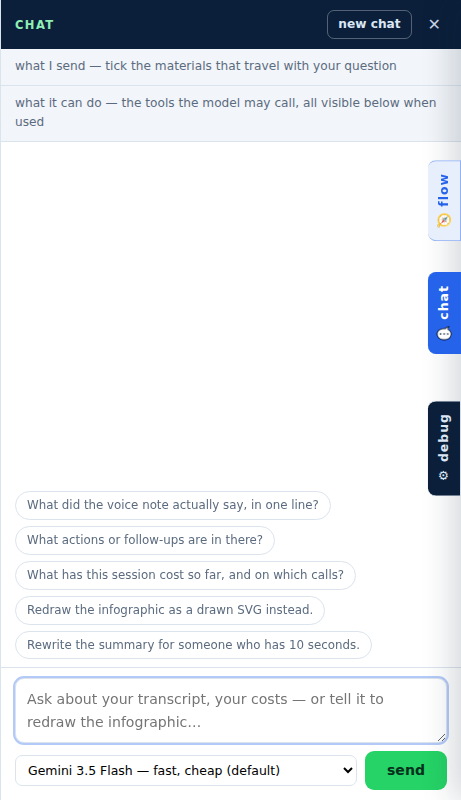
The chat pane: tick what the assistant may see — the rows ARE the request.
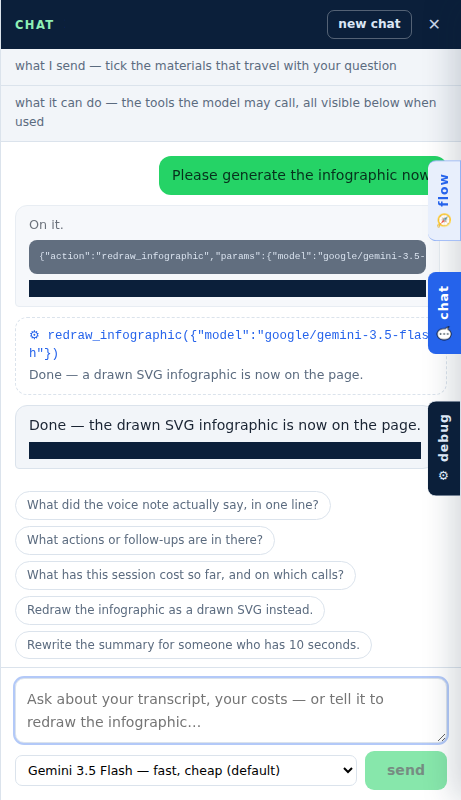
Ask for work, not just answers: the assistant drives the tool, every call visible in the thread.
The assistant edited the summary — the original is always one click away.